
To get our apps Virtual Options to show up correctly in the New Order email notifications (sent to staff), you will need to add some code to your template.
How to get to the New Order Notification
To topClick here to go directly to your New Order Notification.
Try the link above first. If that doesn’t work you can get to this email notification by following the directions below.
- Go to your Shopify dashboard
- Select Settings (bottom left)
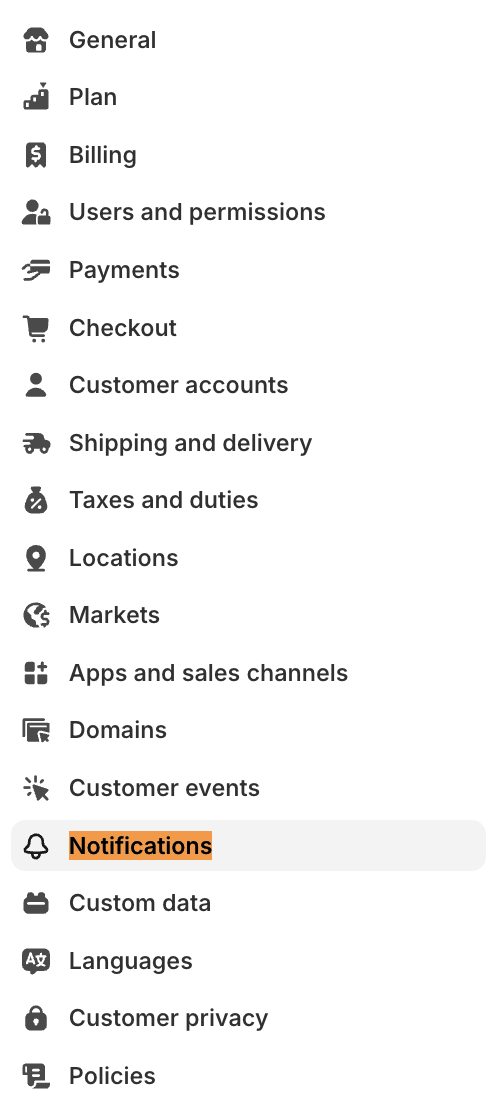
- Select Notifications
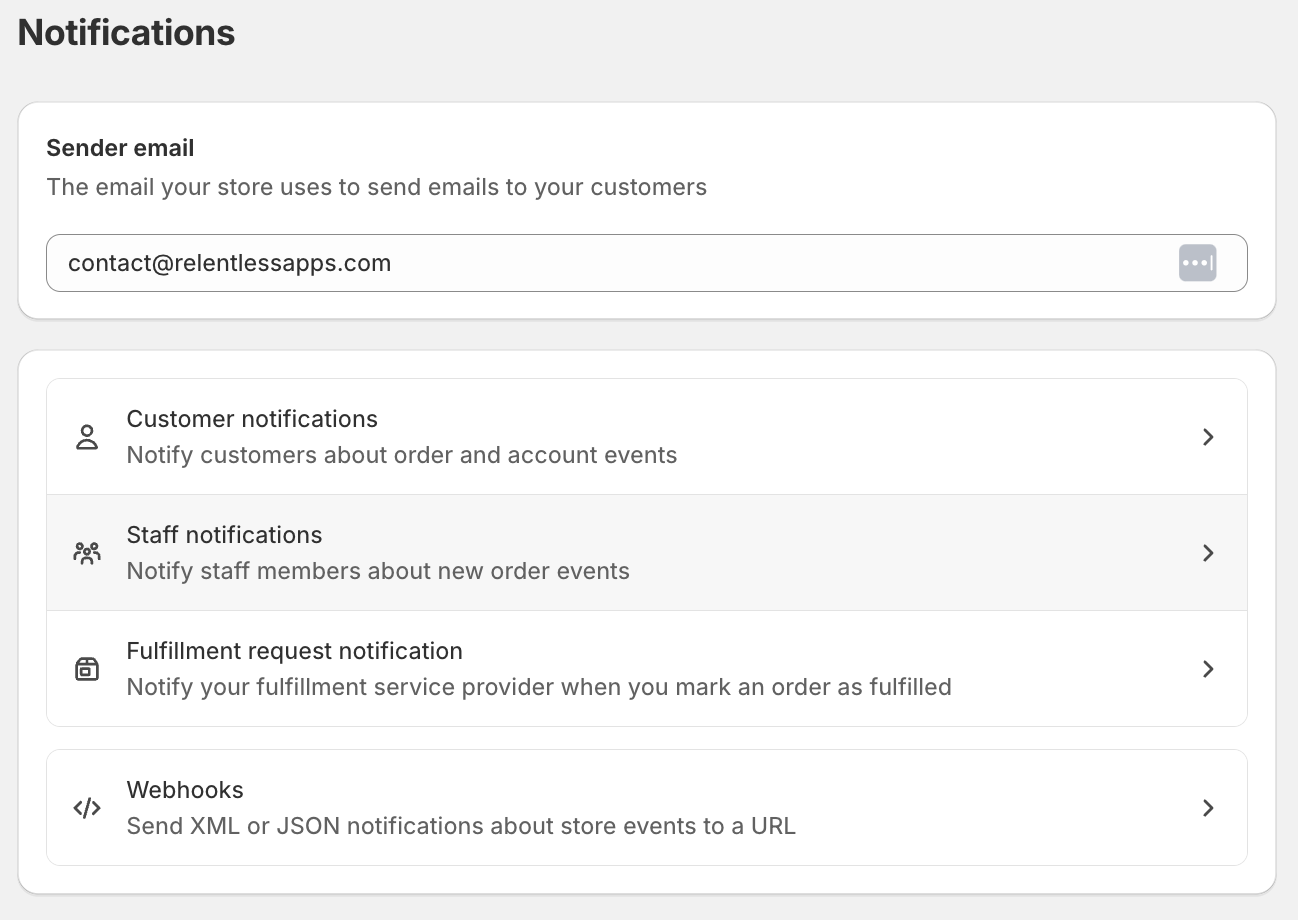
- Select Staff notifications
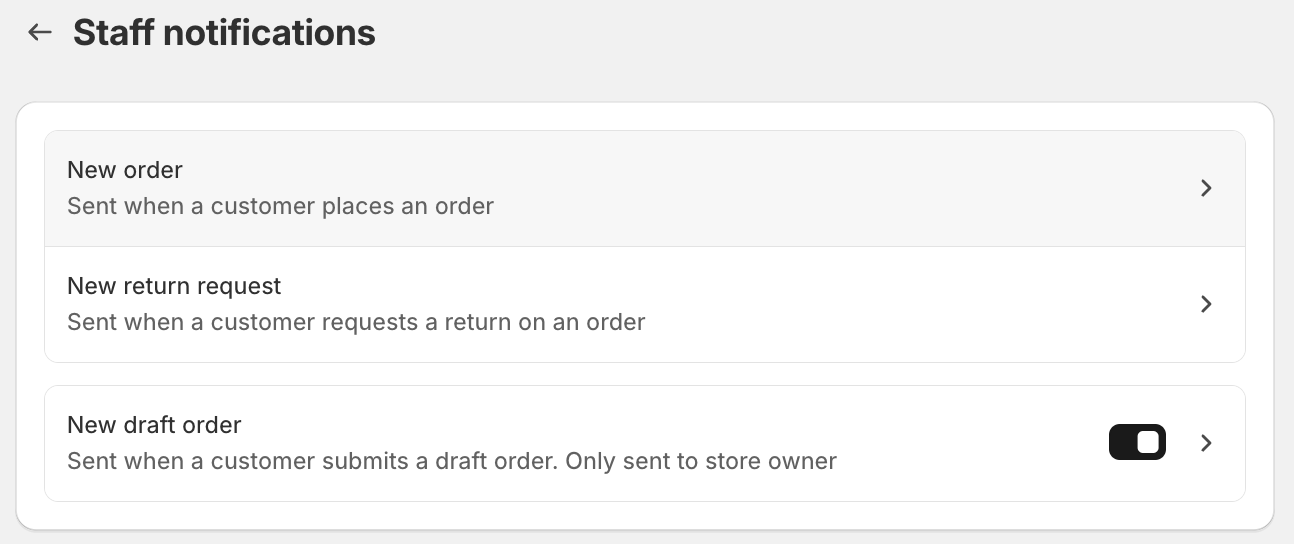
- Click on New Order
- Click Edit Code (upper right)

How to Edit New Order Notification
To topIn the New Order Template search for the code below.
line.variant.titleThe code above should appear on line 228 in the current template (December 2025 version) (like in the screenshot below).
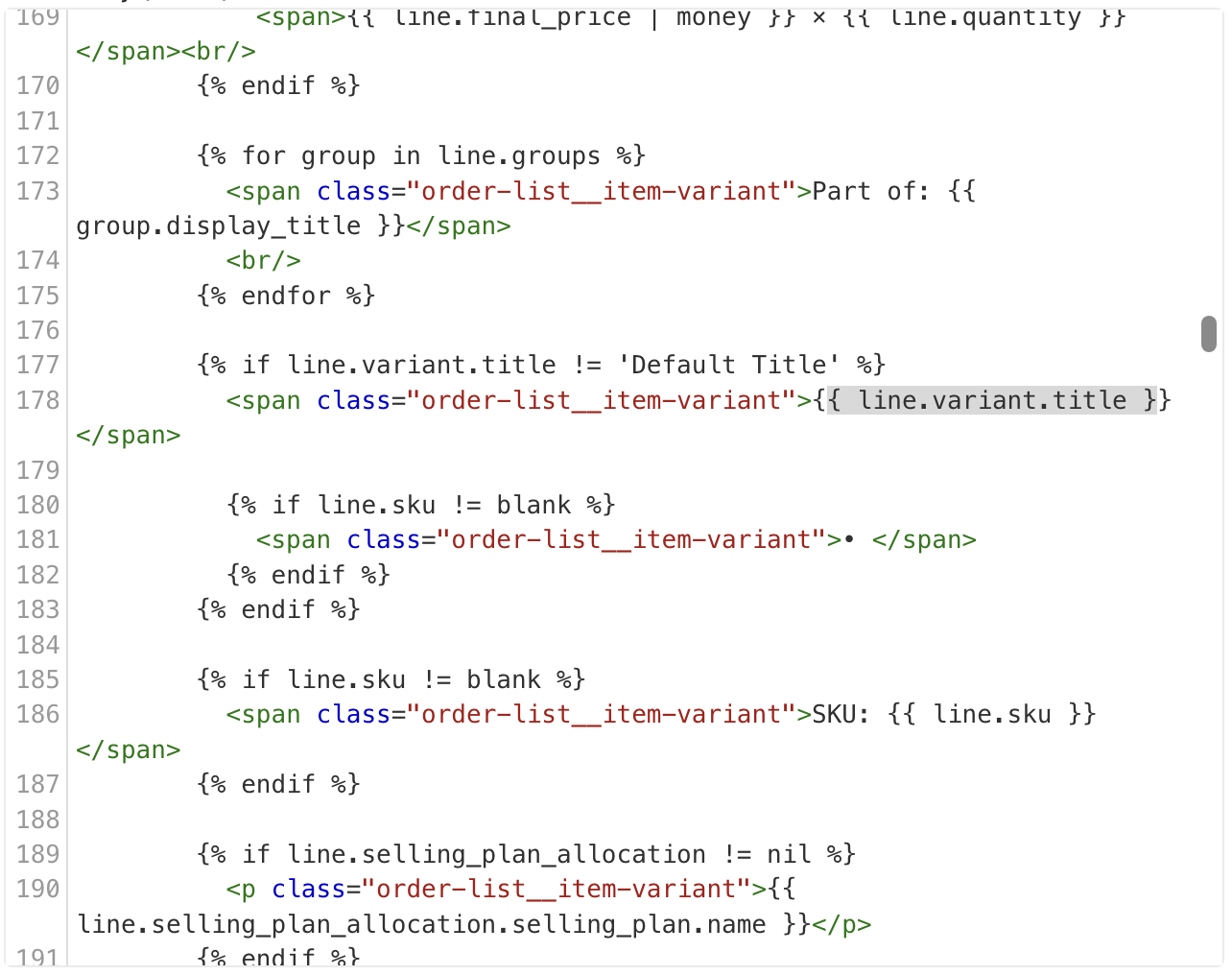
Place the code below after the {% endif %} on line 234.
{% for p in line.properties %}
{% unless p.last == blank or p.first == '_' %}
<div class="bcpo-property">{{ p.first }}:
{% if p.last contains '/uploads/' %}
Uploaded File
{% else %}
{{ p.last }}
{% endif %}</div>
{% endunless %}
{% endfor %}
Make sure to Save the email notification in the upper right.
For testing, the Send Test Notification won’t include line item properties, so you’ll need to checkout with a product whose price is set to $0.
You can revert back to the default notification by scrolling to the bottom of the page and clicking Revert to Default.